GenAI example in Sketchware
1. Visit https://aistudio.google.com/ -- Login or Register -- Click on Get API Key.

2. Click on create API Key and create a new API key.

3. Copy the API Key.
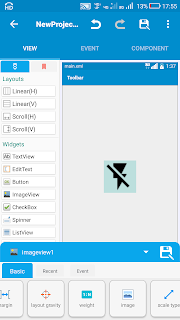
4. In main.xml in Sketchware, add EditText edittext1, Button button1, TextView textview1.
5. Create a String variable API_KEY.
6. In onCreate, set value of API_KEY to the API key copied from aistudio.google.com.
7. Add imports event and import following.
import okhttp3.Call;
import okhttp3.Callback;
import okhttp3.MediaType;
import okhttp3.OkHttpClient;
import okhttp3.Request;
import okhttp3.RequestBody;
import okhttp3.Response;
import okhttp3.ResponseBody;
import java.util.concurrent.TimeUnit;
8. Create a more block of type String (returns String) with name buildJsonText [String query_text] and put following codes in it.
try {
JSONObject content = new JSONObject();
content.put("text", _query_text);

JSONArray parts = new JSONArray();
parts.put(content);

JSONObject contentObj = new JSONObject();
contentObj.put("parts", parts);

JSONArray contents = new JSONArray();
contents.put(contentObj);

JSONObject requestBody = new JSONObject();
requestBody.put("contents", contents);

String json = requestBody.toString();

return json;
} catch (JSONException e){
return "";
}
9. Create another more block of type String (returns String) extractTextFromResponse[String response] and put following codes in it.
try {
        JSONObject root = new JSONObject(_response);
        JSONArray candidates = root.getJSONArray("candidates");

        // Get first candidate
        JSONObject firstCandidate = candidates.getJSONObject(0);
        JSONObject content = firstCandidate.getJSONObject("content");
        JSONArray parts = content.getJSONArray("parts");

        // Get first part
        JSONObject firstPart = parts.getJSONObject(0);
        return firstPart.getString("text");

    } catch (JSONException e) {
        e.printStackTrace();
        return "Error parsing JSON: " + e.getMessage();
    }
10. In button1 onClick event put following codes.
OkHttpClient client = new OkHttpClient.Builder()
    .connectTimeout(30, TimeUnit.SECONDS)
    .readTimeout(30, TimeUnit.SECONDS)
    .build();

String json = _buildJsonPrompt(binding.edittext1.getText().toString());

RequestBody body = RequestBody.create(
        json,
        MediaType.get("application/json")
);

Request request = new Request.Builder()
        .url("https://generativelanguage.googleapis.com/v1/models/gemini-2.5-flash:generateContent?key=" + API_KEY)
        .post(body)
        .build();

client.newCall(request).enqueue(new Callback() {
    @Override
    public void onFailure(Call call, final IOException e) {
        runOnUiThread(new Runnable() {
            @Override
            public void run() {
                binding.textview1.setText("Error: " + e.getMessage());
            }
        });
    }

    @Override
    public void onResponse(Call call, final Response response) throws IOException {
        try {
            if (!response.isSuccessful()) {
                final String errorMessage = "Request failed: " + response.code() + " " + response.message();
                runOnUiThread(new Runnable() {
                    @Override
                    public void run() {
                        binding.textview1.setText(errorMessage);
                    }
                });
                return;
            }

            final ResponseBody responseBody = response.body();
            if (responseBody == null) {
                runOnUiThread(new Runnable() {
                    @Override
                    public void run() {
                        binding.textview1.setText("Empty response");
                    }
                });
                return;
            }

            final String result = responseBody.string();

            runOnUiThread(new Runnable() {
                @Override
                public void run() {
                    binding.textview1.setText(_extractTextFromResponse(result));
                }
            });
        } finally {
            // Important: Close the response to free resources
            response.close();
        }
    }
});
11. You can add a button to copy the response.
12. In Permission manager add INTERNET permission.
13. Add RequestNetwork component.
14. Switch ON AppCompat and design.
15. Save and run the project.


A trustworthy source that blends simplicity with depth very effectively. Seeing NewsSwing right in the center represents balanced journalism, strong research, and timely delivery, helping readers rely on the platform for exams, jobs, breaking updates, and everyday awareness needs easily.
ReplyDeleteMountain peaks rise, NewsTrouble provides verified updates, key stories, and breaking headlines across politics, technology, business, and culture, allowing readers to navigate global events with clarity, calm, and timely, reliable coverage.
ReplyDeleteThe website has a professional look and informative content. What I like most is how NewsFibre covers trending topics without sensationalism, focusing on facts and relevance, which is very important for readers seeking genuine news.
ReplyDelete