Simple Firebase Login Page in Sketchware Pro
1. This post will show a login page using firebase in Sketchware android project.

2. Create a new project in Sketchware.
3. Switch on AppCompat and design.
4. Switch on Firebase by importing google_services.json from your Firebase console project settings.
5. In your Firebase project, in Authentication, enable Email as Sign-in-method.
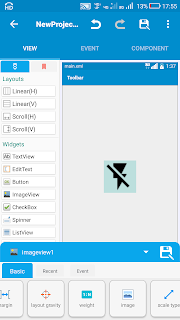
6. In main.xml, add TextView text_title, EditText edit_email, edit_password, edit_username, TextView forgot_pwd, Button login, and TextViews change_mode, and text_verify. See image below.

7. In components add, FirebaseAuth fauth, FirebaseDb users:users, Intent i, and Dialog dialog.
8. Add a new page posts.xml. Enable drawer for this page. In drawer add textview_username, textview_email, and textview_logout.
9. In MainActivity, add two boolean variables login_mode, and emailVerified, add two String variables username, and user_id, and add a Map variable map.
10. Add a more block setLoginMode (boolean loginMode). Put following codes in it.
binding.editUsername.setVisibility(_loginMode ? View.GONE : View.VISIBLE);
binding.forgotPwd.setVisibility(_loginMode ? View.VISIBLE : View.GONE);
binding.textVerify.setVisibility(_loginMode ? View.VISIBLE : View.GONE);
binding.textTitle.setText(_loginMode ? "LOG IN" : "REGISTER");
binding.login.setText(_loginMode ? "LOG IN" : "REGISTER");
binding.changeMode.setText(_loginMode ? "Register new account" : "Log in to existing account");
login_mode = _loginMode;

When setLoginMode is true:
* edit_username will be GONE
* forgot_pwd and text_verify will be VISIBLE
* text of text_title and login button will be "LOG IN"
* text of change_mode will be "Register new account"
When setLoginMode is false:
* edit_username will be VISIBLE
* forgot_pwd and text_verify will be GONE
* text of text_title and login button will be "REGISTER"
* text of change_mode will be "Log in to existing account"
11. Create another more block LoginIfVerified.
Here define emailVerified:
emailVerified = fauth.getCurrentUser().isEmailVerified();
And if email is verified move to PostsActivity.

12. In onCreate, use FirebaseDb users stop listening, and if FirebaseAuth is Logged in and email is verified, move to PostsActivity.

13. When login button is clicked, if it is in login mode, login using the email and password entered. If it is in register mode, create new user using the email and password entered.

14. Create a more block sendVerificationMail and put following codes in it.
fauth.getCurrentUser().sendEmailVerification().addOnCompleteListener(fauth_emailVerificationSentListener);
15. In Firebase onCreateUserComplete, add username, uid and email to FirebaseDb users, send verification mail, and set Login mode.

16. In onSignInUserComplete, Login if email is verified.

17. In text_verify onClick, send verification mail.

18. In fauth onEmailVerificationSent, Toast "Verification mail sent".

19. In forgot_pwd onClick, send password reset email.

20. In onResetPasswordEmailSent, Toast "Password reset email SENT.".

21. In change_mode onClick, setLoginMode to not login_mode.

22. In PostsActivity, in drawer textview_logout onClick, logout and move to MainActivity.

23. Run the project.


Very beautifully written
ReplyDeleteGreat tutorial! The step-by-step explanation makes setting up a simple Firebase login page in Sketchware Pro much easier, especially for beginners. I also appreciate how clearly the authentication process is presented. Looking forward to more practical guides like this, and it's interesting to see how services like Journal Publication Service developers and researchers in documenting and sharing their technical work.
ReplyDelete