Pdf Viewer using Pdf.js in Sketchware pro
This post shows how to pick a pdf file and display it in WebView using Pdf.js in Sketchware project.


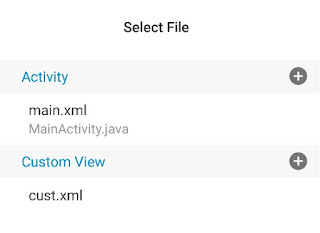
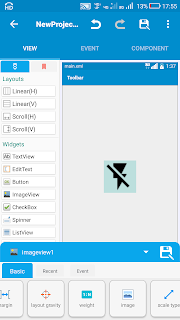
1. Create a new project in Sketchware pro. In main.xml add a TextView textview1 with text 'OPEN PDF' and a WebView pdfWebView.
2. Switch On AppCompat and design.
3. Download pdf.js from following link:
or
4. Extract the contents of the downloaded zip file.

5. In Sketchware pro project, in Asset Manager, add a sample pdf file and rename it as sample.pdf. Also, create a new folder pdfjs.

6. In pdfjs folder import all the contents extracted from the downloaded zip file.

7. Add a File picker component fp with mime type application/pdf.
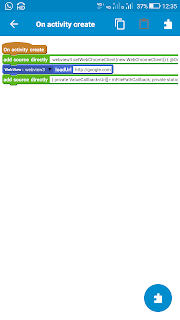
8. In onCreate event, get WebView settings and enable JavaScript, and file access. Load sample.pdf in the WebView.
        WebSettings settings = binding.pdfWebView.getSettings();
settings.setJavaScriptEnabled(true);
settings.setAllowFileAccess(true);
settings.setAllowFileAccessFromFileURLs(true);
settings.setAllowUniversalAccessFromFileURLs(true);

// Load the viewer.html and point it to your local PDF file
String pdfPath = "file:///android_asset/sample.pdf";
String viewerUrl = "file:///android_asset/pdfjs/web/viewer.html?file=" + pdfPath;

binding.pdfWebView.loadUrl(viewerUrl);
9. In textview1 onClick event, use block FilePicker fp pick files.
10. In FilePicker onFilesPicked event, copy the picked file to cache of app, and then load the file from cache into WebView.
Uri uri = null;

if (_data != null) {
    if (_data.getClipData() != null) {
        // If multiple files selected, use the first one
        ClipData.Item item = _data.getClipData().getItemAt(0);
        uri = item.getUri();
    } else {
        // Single file selected
        uri = _data.getData();
    }
}

if (uri == null) {
    Toast.makeText(this, "No file selected.", Toast.LENGTH_SHORT).show();
    return;
}

File tempFile = new File(getCacheDir(), "temp.pdf");
InputStream in = null;
OutputStream out = null;

try {
    in = getContentResolver().openInputStream(uri);
    if (in == null) {
        throw new IOException("Failed to open input stream for: " + uri);
    }

    out = new FileOutputStream(tempFile);
    byte[] buf = new byte[4096];
    int len;
    while ((len = in.read(buf)) > 0) {
        out.write(buf, 0, len);
    }
    out.flush();

    String viewerUrl = "file:///android_asset/pdfjs/web/viewer.html?file=" +
            "file://" + tempFile.getAbsolutePath();

    binding.pdfWebView.loadUrl(viewerUrl);

} catch (IOException e) {
    e.printStackTrace();
    Toast.makeText(this, "Error loading PDF: " + e.getMessage(), Toast.LENGTH_LONG).show();
} finally {
    try {
        if (in != null) in.close();
        if (out != null) out.close();
    } catch (IOException ignored) { }
}
11. Save and run the project.
12. To handle errors when WebView fails to load the pdf:
a) In Asset Manager, create a new file error.html and put your custom html error page in it. Below is an example.
<!DOCTYPE html>
<html lang="en">
<head>
    <meta charset="UTF-8">
    <meta name="viewport" content="width=device-width, initial-scale=1.0">
    <title>Error Loading PDF</title>
    <style>
        * {
            margin: 0;
            padding: 0;
            box-sizing: border-box;
            font-family: 'Segoe UI', Tahoma, Geneva, Verdana, sans-serif;
        }

        body {
            background: linear-gradient(135deg, #f5f7fa 0%, #c3cfe2 100%);
            min-height: 100vh;
            display: flex;
            flex-direction: column;
            align-items: center;
            justify-content: center;
            padding: 20px;
            color: #333;
        }

        .error-container {
            max-width: 600px;
            width: 100%;
            background-color: white;
            border-radius: 12px;
            box-shadow: 0 10px 30px rgba(0, 0, 0, 0.1);
            padding: 40px;
            text-align: center;
            position: relative;
            overflow: hidden;
        }

        .error-container::before {
            content: '';
            position: absolute;
            top: 0;
            left: 0;
            width: 100%;
            height: 6px;
            background: linear-gradient(90deg, #ff6b6b, #4ecdc4, #45b7d1);
        }

        .error-icon {
            font-size: 80px;
            margin-bottom: 20px;
            color: #ff6b6b;
        }

        h1 {
            font-size: 28px;
            margin-bottom: 15px;
            color: #2c3e50;
        }

        .error-message {
            font-size: 18px;
            line-height: 1.6;
            margin-bottom: 25px;
            color: #555;
        }

        .error-details {
            background-color: #f8f9fa;
            border-left: 4px solid #4ecdc4;
            padding: 15px;
            margin: 25px 0;
            text-align: left;
            border-radius: 0 8px 8px 0;
        }

        .error-details h3 {
            margin-bottom: 10px;
            color: #2c3e50;
        }

        .error-details ul {
            padding-left: 20px;
        }

        .error-details li {
            margin-bottom: 8px;
        }

        .action-buttons {
            display: flex;
            flex-wrap: wrap;
            gap: 15px;
            justify-content: center;
            margin-top: 30px;
        }

        .btn {
            padding: 12px 24px;
            border: none;
            border-radius: 6px;
            font-size: 16px;
            font-weight: 600;
            cursor: pointer;
            transition: all 0.3s ease;
            display: flex;
            align-items: center;
            justify-content: center;
            gap: 8px;
        }

        .btn-primary {
            background-color: #4ecdc4;
            color: white;
        }

        .btn-primary:hover {
            background-color: #3db8af;
            transform: translateY(-2px);
        }

        .btn-secondary {
            background-color: #f8f9fa;
            color: #495057;
            border: 1px solid #dee2e6;
        }

        .btn-secondary:hover {
            background-color: #e9ecef;
            transform: translateY(-2px);
        }

        .btn-icon {
            font-size: 18px;
        }

        .contact-support {
            margin-top: 30px;
            font-size: 14px;
            color: #6c757d;
        }

        .contact-support a {
            color: #4ecdc4;
            text-decoration: none;
        }

        .contact-support a:hover {
            text-decoration: underline;
        }

        @media (max-width: 600px) {
            .error-container {
                padding: 30px 20px;
            }

            .action-buttons {
                flex-direction: column;
            }

            .btn {
                width: 100%;
            }
        }
    </style>
</head>
<body>
    <div class="error-container">
        <div class="error-icon">📄❌</div>
        <h1>We're having trouble loading this PDF</h1>

        <div class="error-message">
            The PDF file you're trying to access cannot be loaded. This might be due to one of the following reasons:
        </div>

        <div class="error-details">
            <h3>Possible causes:</h3>
            <ul>
                <li>The file has been moved or deleted</li>
                <li>There's a network connectivity issue</li>
                <li>The file is corrupted or in an unsupported format</li>
                <li>Your browser doesn't support PDF viewing</li>
            </ul>
        </div>

        <div class="action-buttons">
            <button class="btn btn-primary" onclick="window.location.reload()">
                <span class="btn-icon">🔄</span> Try Again
            </button>
            <button class="btn btn-secondary" onclick="history.back()">
                <span class="btn-icon">⬅️</span> Go Back
            </button>
            <button class="btn btn-secondary" onclick="goToHome()">
                <span class="btn-icon">🏠</span> Home
            </button>
        </div>

        <div class="contact-support">
            If the problem persists, please <a href="mailto:sanjeevk4571@gmail.com">contact our support team</a>.
        </div>
    </div>

    <script>
        function goToHome() {
            // Load the PDF viewer with sample.pdf
            window.location.href = "file:///android_asset/pdfjs/web/viewer.html?file=" + "file:///android_asset/sample.pdf";
        }

        // You can customize the error message based on the specific error
        function setErrorMessage(errorType) {
            const titleElement = document.querySelector('h1');
            const messageElement = document.querySelector('.error-message');

            if (errorType === 'not-found') {
                titleElement.textContent = "PDF File Not Found";
                messageElement.textContent = "The PDF file you're looking for doesn't exist or has been moved. Please check the URL or contact the document owner.";
            } else if (errorType === 'loading-error') {
                titleElement.textContent = "Error Loading PDF";
                messageElement.textContent = "We encountered an error while trying to load the PDF file. This might be due to a network issue or file corruption.";
            }
            // Default message is already set in HTML
        }
    </script>
</body>
</html>
b) In onCreate event, set a new WebViewClient to handle the error.
binding.pdfWebView.setWebViewClient(new WebViewClient() {
    @Override
	public void onPageStarted(WebView _param1, String _param2, Bitmap _param3) {
		final String _url = _param2;
		super.onPageStarted(_param1, _param2, _param3);
	}

	@Override
	public void onPageFinished(WebView _param1, String _param2) {
		final String _url = _param2;
		super.onPageFinished(_param1, _param2);
	}

	@Override
	public void onReceivedError(WebView view, WebResourceRequest request, WebResourceError error) {
		super.onReceivedError(view, request, error);
		Toast.makeText(view.getContext(), "Failed to load PDF: " + error.getDescription(), Toast.LENGTH_LONG).show();

		view.loadUrl("file:///android_asset/error.html");
	}
});
13. To hide toolbar and sidebar in pdf Viewer, put following codes in pdfjs/web/viewer.css file.
div.toolbar {
  display: none !important;
}
#viewerContainer {
  top: 0 !important; /* Adjust if needed to remove top margin */
}
#sidebarContainer {
  display: none !important;
}
#mainContainer {
  left: 0;
}
Pdf Viewer for a Url: https://www.sketchwarehelp.com/2025/10/pdf-viewer-for-url.html?m=1


Comments
Post a Comment